Top 5 Git Commands You Should Know for a Better Dev Workflow
· 6 min read
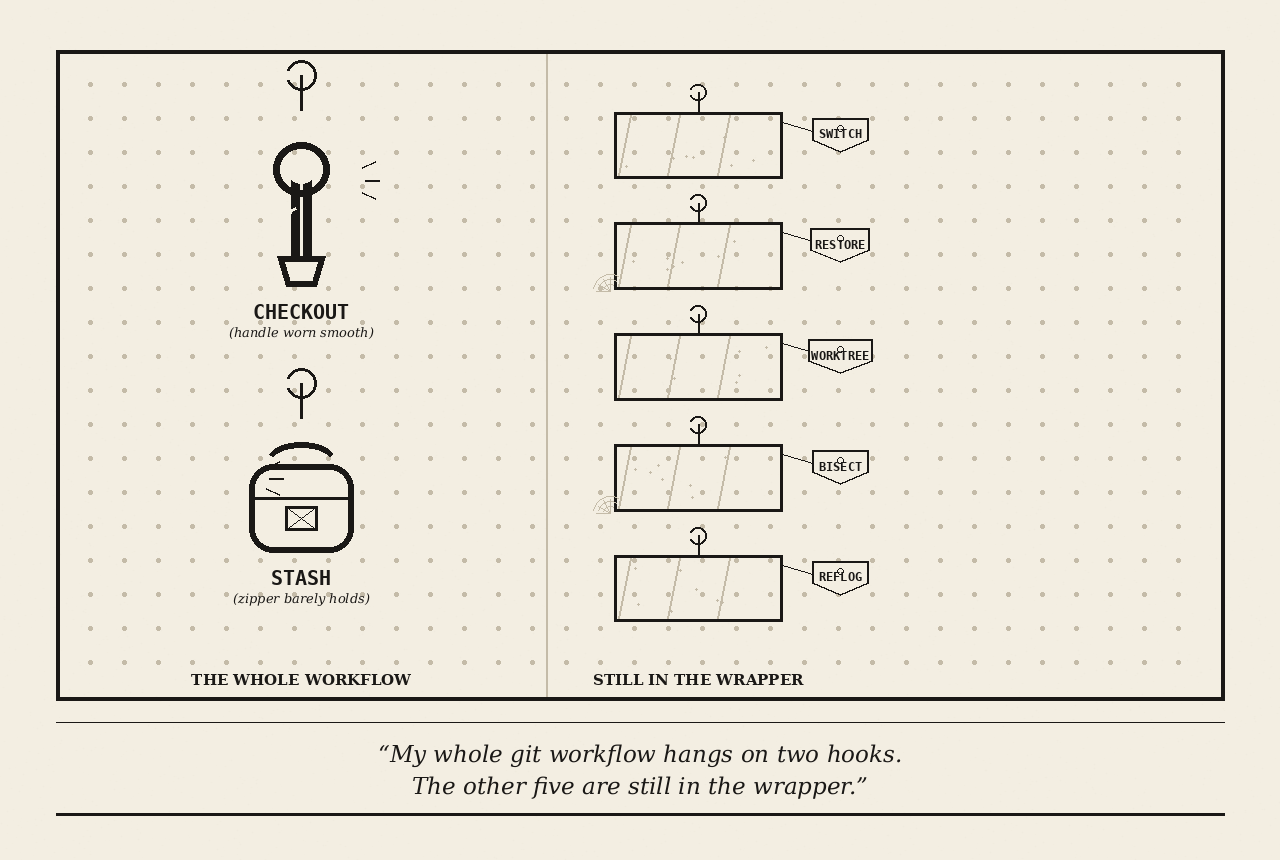
My entire git workflow runs on two commands.
git stashwhen I need to get out of the way.git checkoutwhen I need to get somewhere else.
No aliases, no muscle-memory shortcuts, no clever bisect story about the regression I hunted down in fifteen minutes. Just stash and checkout for years, because they cover almost everything a normal day asks for.
But “almost” is doing a lot of work in that sentence.
The five commands below are what I’ve started reaching for instead, because each accomplishes tasks I had to manually do in some hacky way.
All of these commands shipped in git for years. You can call each with --help for more comprehensive information.
Consider this a shortlist for anyone else who’s been getting by on two verbs when git actually offers a whole vocabulary.
Contents
git switch
git checkout does three unrelated jobs: switch branches, restore files, and detach HEAD for a look around.
Git 2.23 split that pile in two, and git switch got the branch-switching half (detaching HEAD came along with it, since it’s a special case of switching).
git switch main
git switch -c fix/leaky-modal
The difference from checkout is that switch only touches branches, so it refuses to guess when you type a filename instead of a branch name, which is exactly the ambiguity that used to eat an afternoon. git switch -- even swaps back to your previous branch, the same trick as cd --.
switch won’t guess what you meant, and after typing it often I’ve come to prefer that certainty. Old habits still work, since checkout isn’t going anywhere, but switch is the one I reach for now.
Use case
- Jumping to
mainto review a teammate’s PR without losing your place on your own branch - Creating a new branch straight from a ticket number, before touching a single file
- Bouncing back to whatever you were just on with
git switch -, the same trick ascd -
git switch - # use case 3: bounce back to whatever you were just ongit restore
git restore took the other half of checkout’s job: pulling a file back to how it looked in the index or in some earlier commit.
git restore --staged app.js
git restore --source=HEAD~2 app.js
Where this works best is with --staged flag. It unstages a file without touching your working copy, which used to mean memorizing git reset HEAD -- <file> and hoping you got the argument order right.
git restore operates on three distinct locations in your repository: the Source (where the clean content is pulled from), the Staging Area (index), and the Working Tree (your local files).By controlling —staged and —worktree, you determine which destination gets modified, while —source (-s) dictates where the snapshot is pulled from.
git restore reads like what it does. reset and checkout sounds alien for new users, not for anyone who wasn’t already fluent in git’s plumbing.
Unlike checkout, restore focuses strictly on files, eliminating the risk of accidentally switching branches.
Use case
- Undoing edits to a file you weren’t supposed to touch, back to how
HEADhas it - Unstaging a file you
git added by mistake, without losing the edits sitting in it - Pulling one file back from two commits ago, just to compare an old approach
git restore app.js # use case 1: undo edits to a file you weren't supposed to touchgit worktree
git worktree is the one that would have saved me the most stashes.
It checks out a second branch into its own folder, fully independent of whatever’s happening in your main one.
git worktree add ../hotfix mainNo more stashing a half-finished feature just to hop over and fix something urgent on main (as long as main isn’t the branch you’re currently sitting on, since git refuses to check the same branch out twice). Both branches sit on disk at once, each with its own working tree, so you can build one while testing the other in a separate terminal tab. Run git worktree remove ../hotfix when the fix ships, and the extra folder disappears with it, without any cleanup ritual.
Use case
- Fixing something urgent on
mainwithout stashing the feature you’re mid-way through - Checking out a teammate’s branch to test their PR, while your own work stays untouched
- Running a slow test suite on one branch while you keep coding on another
git worktree add ../review teammate-feature   # use case 2: check out a teammate's PR branch
git worktree list                             # use case 3: keep tabs on trees while one runs tests
It’s also having a moment among people running coding agents, since switching branches mid-session breaks an AI agent’s context, and worktree lets you avoid that collision entirely, and that’s a workflow stash was never built for. The mention of AI is a whole other story we will not tackle here.
git bisect
git bisect finds the commit that broke something, using binary search instead of your eyeballs.
git bisect start
git bisect bad
git bisect good v1.4.0
Confused? git bisect is simply Git running this exact game of “higher or lower” for you. Instead of guessing commit hashes by hand, Git checks out the code at the midpoint, lets you test it, and waits for your answer.
The coolest part of git bisect is that if you have an automated script or unit test that detects the bug (returning 0 for success and non-zero for failure), you don’t even have to test it manually. One gotcha to watch for: if a commit can’t be tested for reasons unrelated to the bug (e.g. it doesn’t build), have your script exit with code 125 instead of a generic non-zero. That tells git bisect to skip the commit rather than mark it “bad,” which would otherwise throw off the search.
Use case
- Finding which commit introduced a flaky test, somewhere across weeks of history
- Tracking down the exact release that broke a performance benchmark
- Locating the merge that quietly reintroduced a bug someone had already fixed once
git bisect run ./benchmark.sh                 # use case 2: automate the hunt for a broken benchmark
git bisect start --first-parent HEAD v1.4.0   # use case 3: focus on the merge that reintroduced a bug
git reflog
git reflog is the safety net under everything else on this list.
git reflog
git reset --hard HEAD@{2}
Every time HEAD moves, whether from a commit, a checkout, a rebase, or a reset you immediately regretted, git writes it down. Nothing is actually gone until git’s garbage collector runs, and that default window is 90 days for anything still reachable, 30 for anything that isn’t.
So the branch you just force-pushed over, or the commit reset --hard seemed to delete, is usually still sitting in your local reflog, waiting for you to point back at it and push again. It’s worth running once, cold, before you ever need it, the same way you’d want to know where the fire extinguisher is before there’s a fire.
Use case
- Recovering a branch you just deleted with
git branch -D, one keystroke too fast - Undoing a
reset --hardthat wiped out committed work you hadn’t pushed anywhere - Getting back a commit that seems to have vanished after a rebase went sideways
git reflog                             # reference your safety net
-----
9e8b7c (HEAD -> master, origin/master, origin/HEAD) HEAD@{0}: commit: redesign
a7e23c85 HEAD@{1}: commit: new post
1d768e5c HEAD@{2}: branch: deleted recovered-branch
abc1234  HEAD@{3}: commit: redesign 1
8df55c2b HEAD@{4}: commit: fix resolution post
4e284f5c HEAD@{5}: commit: cleanup
...

git branch recovered-branch HEAD@{2}   # use case 1: recover a branch deleted with git branch -D
git cherry-pick abc1234 # use case 3: get back a commit lost after a bad rebaseA habit, not a full workflow
None of this makes stash or checkout obsolete.
I still reach for both most days, and I probably always will. What’s changed is that they’re no longer the only tools on the bench: switch and restore for the everyday moves, worktree for when two branches need to exist at once, bisect for the bug I can’t just eyeball, reflog for the moment I do something I can’t undo any other way.
Pick one from this list and use it on purpose this week.
Start with whichever one solves a problem you already have. If you keep stashing to switch branches, that’s worktree. If you keep losing work to a bad reset --hard, that’s reflog. The rest will follow once one of them earns your trust.
Happy coding!