Four Things Every CMS Image Field Needs
, 5 minute read. Filed under accessibility, tooling and web development.
Most CMS image fields do exactly one job.
They take a file, then hand you a single box to type an alt attribute into. That’s fine for one photo on one page, but it falls apart the moment the same photo gets reused as a hero here and a thumbnail there, because a single field can’t hold two different jobs at once.
Three real media libraries make the pattern easy to spot.
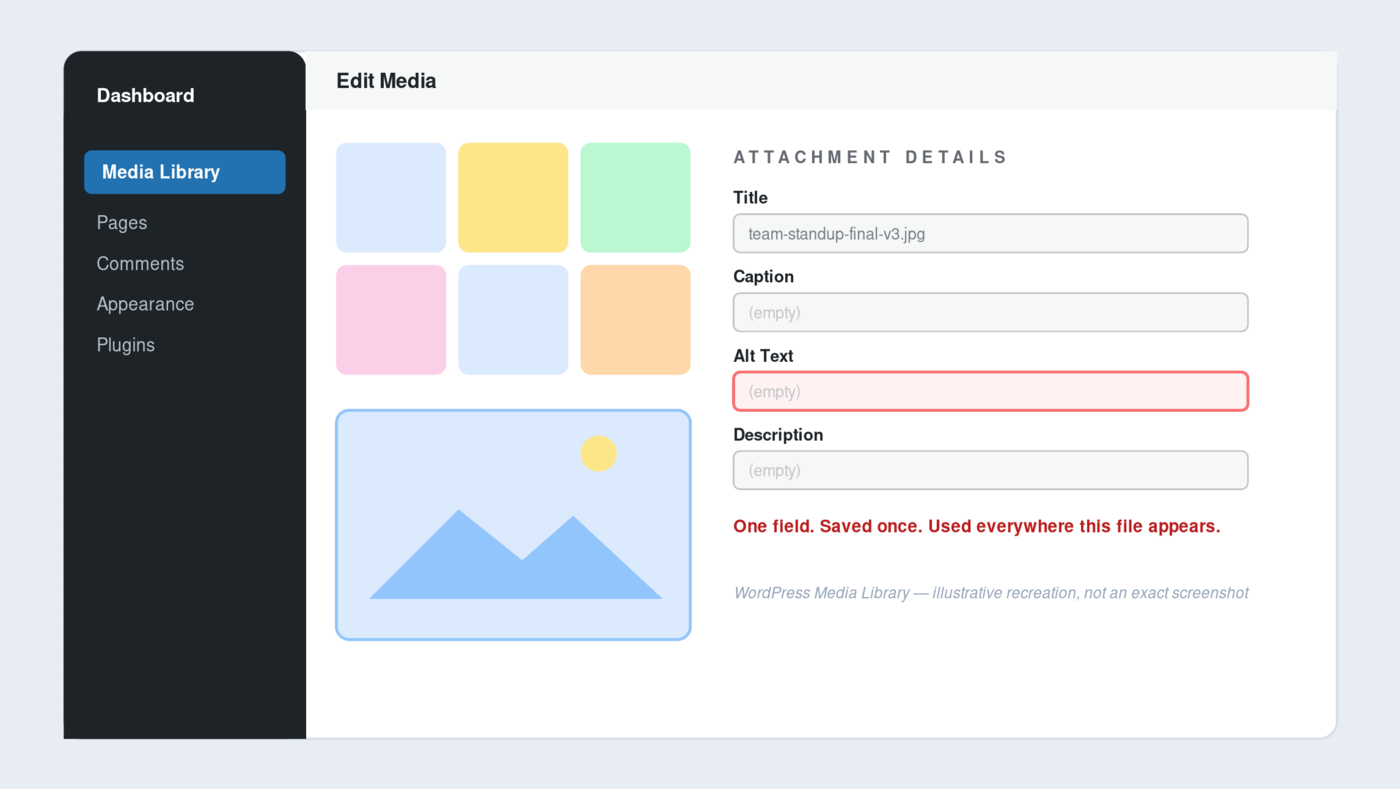 Three separate text fields, one saved value each, no per-placement override.
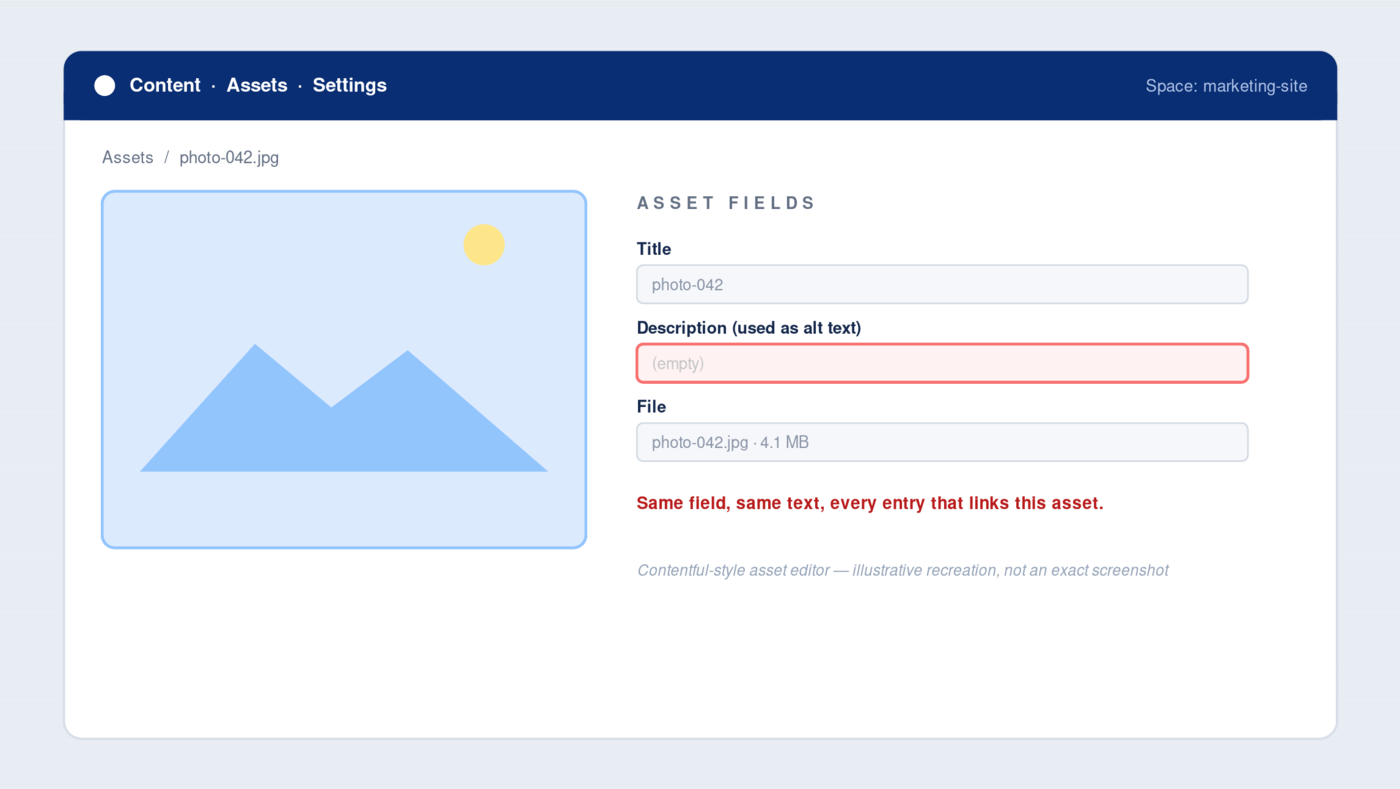 One Description field doing alt text’s job, same everywhere the asset appears.
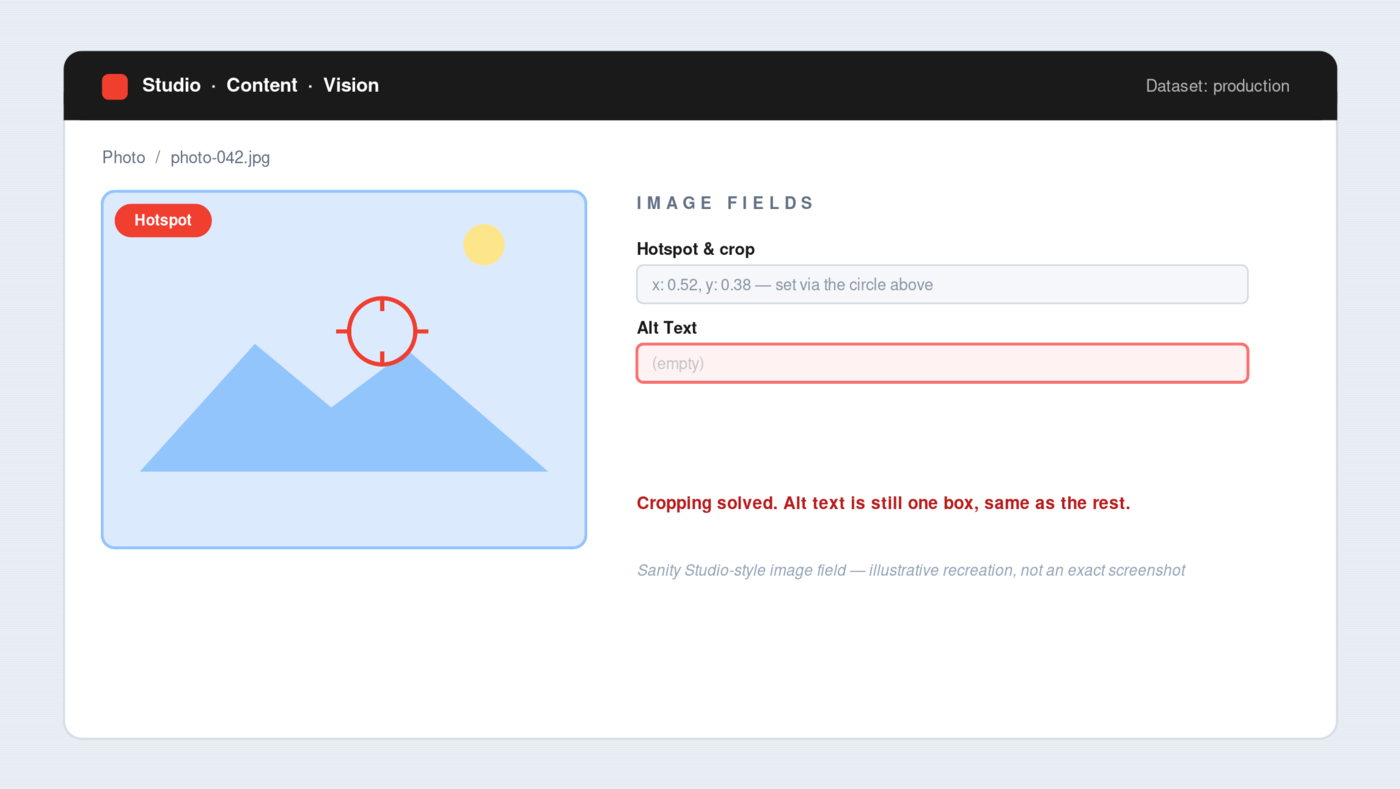 A hotspot for cropping, but still just one alt text box underneath it.
For the previous examples, the model might look like this,
{
  "asset": "photo-042.jpg",
  "alt": "Team standup, April 2026",
  "description": "Company X development team. Sign below says 'April 2026'"
}
There’s nothing wrong with the JSON model, but for most use cases it’s not enough.
Here’s what I’d want added into the metadata every time an image is uploaded.
Additional metadata that makes an image an “asset”
- Alt text that travels with the placement
- A field that asks what the image is for, before what to call it
- Focal points, not fixed crops
- Lazy loading and reserved space, by default
Alt text that travels with the placement
Most media libraries store exactly one alt text per asset, saved once when the file goes in.
That is wrong, because the same image plays a different role every time it gets reused. A product photo can be informative on a listing page and purely decorative as a background texture on a landing page three templates over.
The W3C’s guidance on text alternatives asks for an alternative that serves an equivalent purpose, and purpose is a property of the placement, not the file. The practical fix: store a sensible default on the asset, then let each placement override it.
flowchart TD
    A[Image asset] -->|default alt| B["Team standup, April 2026"]
    A --> C[Used as: blog post hero]
    A --> D[Used as: about-page thumbnail]
    C -->|override: decorative| E["alt is empty"]
    D -->|override: informative| F["Five of us at the whiteboard"]
One asset, one default, two placements that override it, because the image’s job changes, not the file.
That turns alt text from a property of a file into something that describes the relationship between the image and everything around it.
A field that asks what the image is for, before what to call it
As mentioned earlier, most apps show an input for alt text and nothing else. Nothing tells the editor what to describe, so most either skip it or type “image of a person smiling,” which helps no one.
Let’s change it: ask the role first. Decorative? Functional? Informative? The W3C decision tree walks through exactly that triage. Most CMS platforms skip “functional” entirely. In those cases, the UI can be as simple as a “decorative?” checkbox, unchecked by default.
flowchart TD
    A[Upload image] --> B{What is this image for?}
    B -->|Decorative| C[Lock alt to empty, show why]
    B -->|Functional| D[Ask: what action does it trigger?]
    B -->|Informative| E[Ask: what one fact does it add?]
The role picked up top decides what the field asks next. No more blank box, no more guessing.
- Pick decorative and the field locks to an empty alt with a short note explaining why.
- Pick functional and it asks for the action the image triggers, not its appearance.
- Pick informative and it asks for the one fact the image adds that the surrounding text doesn’t already say.
The upload form becomes a two-second decision instead of a blank input that quietly punishes whoever fills it in last.
Focal points, not fixed crops
A photo gets uploaded, and can be used everywhere in the application: a square avatar, a wide hero, a tall card on mobile.
A single manual crop only helps the ratio it was cut for, so the next template either squeezes the subject out of frame or drags a designer back in with scissors.
A “focal point” fixes this at the source. Sanity’s image pipeline stores a hotspot on the image once, then its URL builder crops every requested ratio around that point automatically, with no per-template manual work required (Storyblok ships the same pattern natively; Contentful gets there via a marketplace app, though you still write the crop logic yourself).
flowchart TD
    A["Photo + hotspot (x, y)"] --> B[Square avatar]
    A --> C[Wide hero, 16:9]
    A --> D[Tall mobile card]
Same file, same hotspot, three crops that keeps what is important in frame.
It’s a small piece of metadata, but it’s the difference between an image library that scales with new templates and one that generates a support ticket every time somebody adds a layout.
Lazy loading and reserved space, by default
An <img> tag with no loading attribute and no dimensions does two things wrong at once.
- It competes with everything else on the page for bandwidth the instant the page loads.
- It leaves no space reserved for itself, so the layout jumps the moment it finally arrives.
Native lazy loading fixes the first problem. Setting loading="lazy" tells the browser to defer offscreen images until they’re actually needed, a single attribute and no library required.
The standard setup has one exception. Whatever loads first (above the fold), often the hero, should stay eager, sometimes with fetchpriority="high", because lazy-loading the Largest Contentful Paint candidate only delays the page’s most important image.
Declaring width and height, or a CSS aspect-ratio, fixes the second problem, because the browser can reserve the right box before a single byte of the image arrives.
<img src="children-playing.png" width="500" height="350" loading="lazy" alt="Kids playing tag on the street" />
flowchart TD
    A[img rendered by template] --> B{Above the fold?}
    B -->|Yes, LCP candidate| C["loading=eager, fetchpriority=high"]
    B -->|No| D[loading=lazy]
    C --> E[width/height or aspect-ratio reserved]
    D --> E
One branch for the hero, one for everything else. Both still reserve their space.
Both belong in whatever template renders the image, generated automatically from data the CMS already has instead of leaving it the browser to fill in later when image is loaded which is a step too late.
What a boring image field buys you
None of these five properties take much code once a platform already has the underlying primitive, a hotspot API, an image CDN, a role-aware form. The harder version is building that primitive yourself, from a blank content model.
The checklist
- a default alt with a per-placement override
- a role-first prompt
- a focal point
- lazy loading with reserved space
The image metadata we want
{
  "asset": "photo-042.jpg",
  "altDefault": "Team standup, April 2026",
  "hotspot": { "x": 0.52, "y": 0.38 },
  "variants": ["400w", "800w", "1200w", "1600w"],
  "loading": "lazy",
  "placements": {
    "blog-hero": { "role": "decorative", "alt": "" },
    "about-page-thumbnail": { "role": "informative", "alt": "Our team of five working at the whiteboard" }
  }
}
That’s the all the metadata: four suggestions from this post, one small schema. Just slightly more than the usual filename and alt text.
What they give you is an image pipeline that doesn’t depend on every editor remembering every rule on every upload, because the rules live in the field instead of in someone’s memory.
Happy building!